Hanwha Techwin (WISENET) 02 – March – 2020 https://www.hanwha-security.com
Tutorial Cara instalasi SSM Software (Smart Security Manager v2.1)
1. Download SSM Software V2.1 di website resmi Hanwha Techwin International
https://www.hanwha-security.com/en/products/surveillance-software/management_analytics/A/Wisenet%20SSM/overview/
2. Download Wisenet SSM Core Server (Untuk Server) dan Console Client (Untuk Operator)
Anda juga bisa mendapatkan buku manual, quick guide dan datasheet untuk SSM 2.1 di link yang kalian akses di atas.
Software_Wisenet SSM_191206_Common_Core Server_v2.10.6
Software_Wisenet SSM_191206_Common_PC Console_v2.10.6
3. Instal Wisenet SSM Core Server (Untuk Server) dan Console Client (Untuk Operator) di PC (Windows).
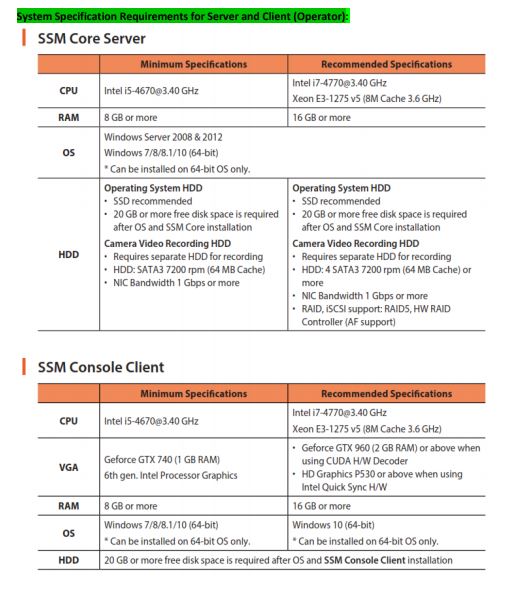
Note: Supported OS → Windows Server 2008 & 2012, Windows 7/8/8.1/10 (64-bit) * Can be installed on 64-bit OS only.
4. Setelah Selesai instal Wisenet SSM Core Server dan SSM Console Client, langkah selanjutnya adalah Memasukan/Inject Viewer
License SSM 2.1 Cara Request License → Link → https://www.hanwha-security.com/en/data-center/ssm-license-2-1-0/
a. Klik Viewer License Request (1)
b. Isi Data” yang di butuhkan
c. lalu klik Ok (2) dan isi kolom Security Check.
5. Setelah mendapat email dari Hanwha, Di dalam email terdapat “Product Key (3)” untuk Viewer License SSM 2.1
6. Setelah mendapatkan “Product Key”, Langkah selanjutnya adalah memasukan Product Key ke dalam License Manager (SSM).
a. Buka License Manger Instal Wisenet SSM Core Server (Untuk Server) dan Console Client (Untuk Operator) di PC (Windows).
b. Setelah membuka License Manager, Masuk ke Menu “Online SW Activation”, Masukan Product Key, Klik Activation.
Note: PC yang di instal SSM Core (Include License Manager) → Harus mempunyai akses ke Internet.
7. Setelah Sukses proses aktivasi SSM Viewer License v2.1 → Maka proses instalasi SSM v2.1 selesai.
8. Sebelum membuka SSM Console Client, Buka SSM services Manager, Pastikan status Services nya Running/Started.
9. Setelah Services sudah Running/Started, kita bisa langsung buka SSM Console Client untuk melakukan proses Configure,
Live view dan Playback. masukin ID: admin, Password nya apapun (Nanti SSM akan mintak untuk Bikin Password Baru).
10. Process Instalasi SSM v2.1 dan Aktivasi Viewer License telah Selesai.
System Specification Requirements for Server and Client (Operator)